Method
Build a WordPress buying guide with Shopify products
Plan, build and review a WordPress buying guide that shows Shopify products from your synchronized catalog, with a fill-in template to reuse.
Before you start Requires a Shopify store, Fy2Press installed and connected, and a first synchronization.
Screens come from the real Fy2Press FREE 1.0.0 plugin running on fictional Morrowfield demo data. No Shopify store or payment is shown.
You may already have a WordPress article that helps readers choose. If the products live in your Shopify store, each recommendation can send the reader off to search for the right item. You can build the page the other way around: write the decision in WordPress, keep products, prices and checkout in Shopify, and let a Fy2Press component display the selected products from your synchronized catalog. You retype no prices and maintain no second catalog.
Before you start, you need an existing Shopify store (its subscription is separate from Fy2Press), the plugin installed and connected, and a first synchronization. This page is published by Pagup, the publisher of Fy2Press. The planning template works with any integration; the component names apply to Fy2Press 1.0.0. If one buy button in one article is all you need, a lighter approach may be enough: see our guide to choosing between a buy button, a plugin and a catalog.
What does the finished demo guide show?
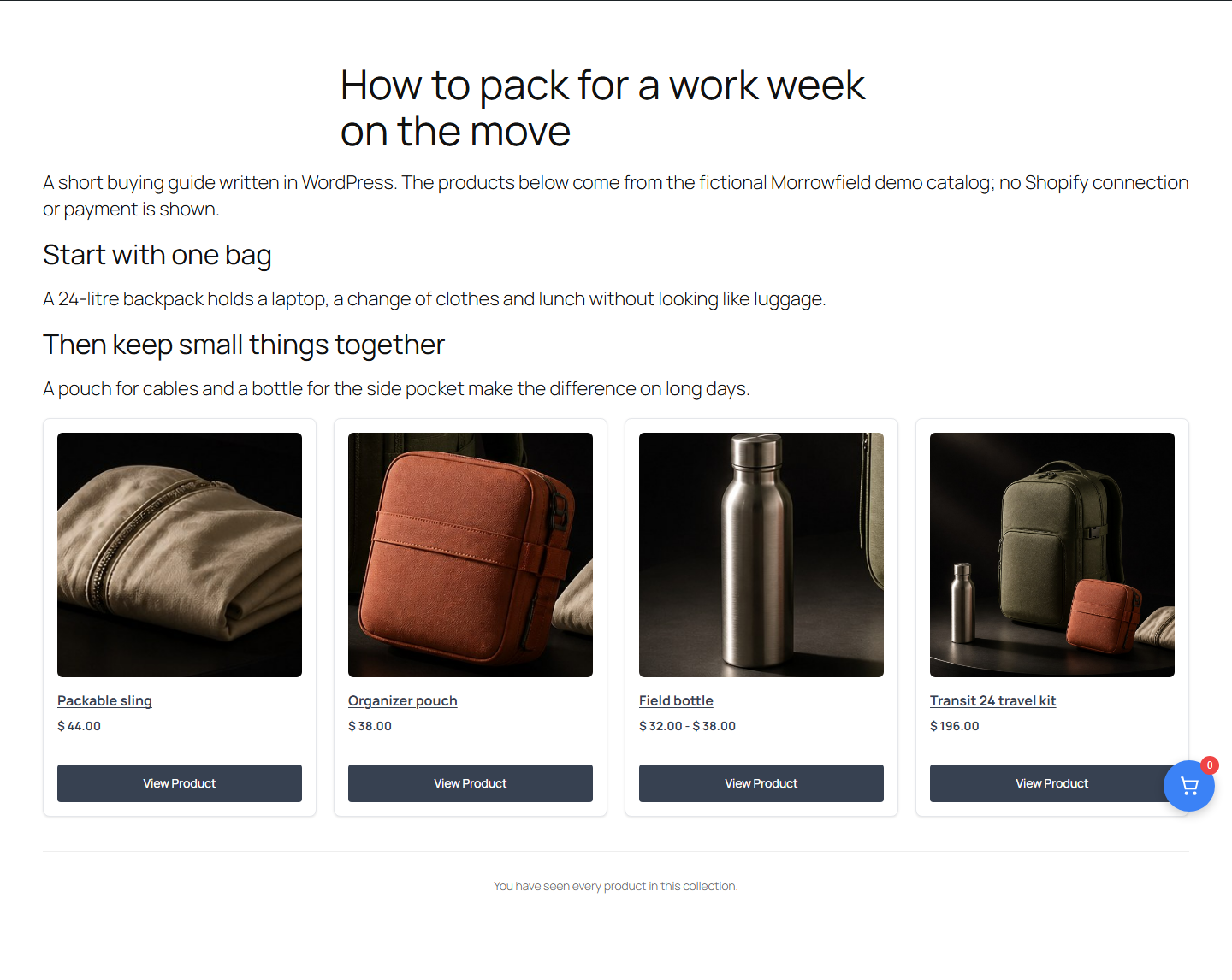
The page above comes from our Morrowfield demonstration. It has a title that states the reader’s situation, two short sections that explain what matters, and one shortcode that lists the products of the Travel essentials collection (shown here with its essential attribute only):
[fy2press_products_loop collection="travel-essentials"]
Each card shows an image, a title, a price and a View Product button that opens the product’s WordPress page, where the variant choice and buying actions appear. The demo also has limits: its products were written directly into a local WordPress test site, not synchronized from Shopify, so no store connection, cart or payment is demonstrated. On a real site, payment always happens on Shopify.
Which buying question should the guide answer?
Start with the decision, not the catalog. Write one sentence that names the reader and the choice they must be able to make by the end. “I commute with a laptop several days a week: what should I carry?” is a decision. “Our travel products” is a list.
Then write two to four criteria that actually change the answer, such as capacity, type of use or budget range, and name the needs your guide will not cover. Each criterion must be checkable in your product information. If a recommendation can only be justified with “great quality”, the guide is not ready.
How do you choose products without building a second catalog?
Keep only the products that answer a criterion. Each one needs a reason to be there and a case where the reader should choose something else.
Then make the selection exist in Shopify, where your products already live. A collection whose products you add by hand gives the guide a stable list that you manage with the rest of your catalog (Shopify Help Center: Collections). Check that the collection and its products are available to the Headless sales channel that Fy2Press reads, as set up in Connect Shopify.
Two facts about Fy2Press shape this step:
- In FREE, you start each synchronization by hand, and it is not instant. A product you add to the collection in Shopify cannot appear in the guide before the next synchronization.
- New product pages are published directly when they are synchronized. Decide their visibility and preferred address in Google and SEO before the first run.
How should the sections be organized?
Give each part of the page one job:
- Opening: the reader’s situation and a short answer.
- One section per need: the criterion, why it matters, then the product that answers it.
- Comparison, if useful: a short table of criteria in words, not prices.
- Next action: where to go when none of the options fits.
The key rule: text carries the reasoning, components carry the commercial data. Prices, availability and variants come from the catalog data Fy2Press displays, so leave them out of your sentences. A price typed into a paragraph must be corrected by hand each time Shopify changes.
Which Fy2Press component goes where?
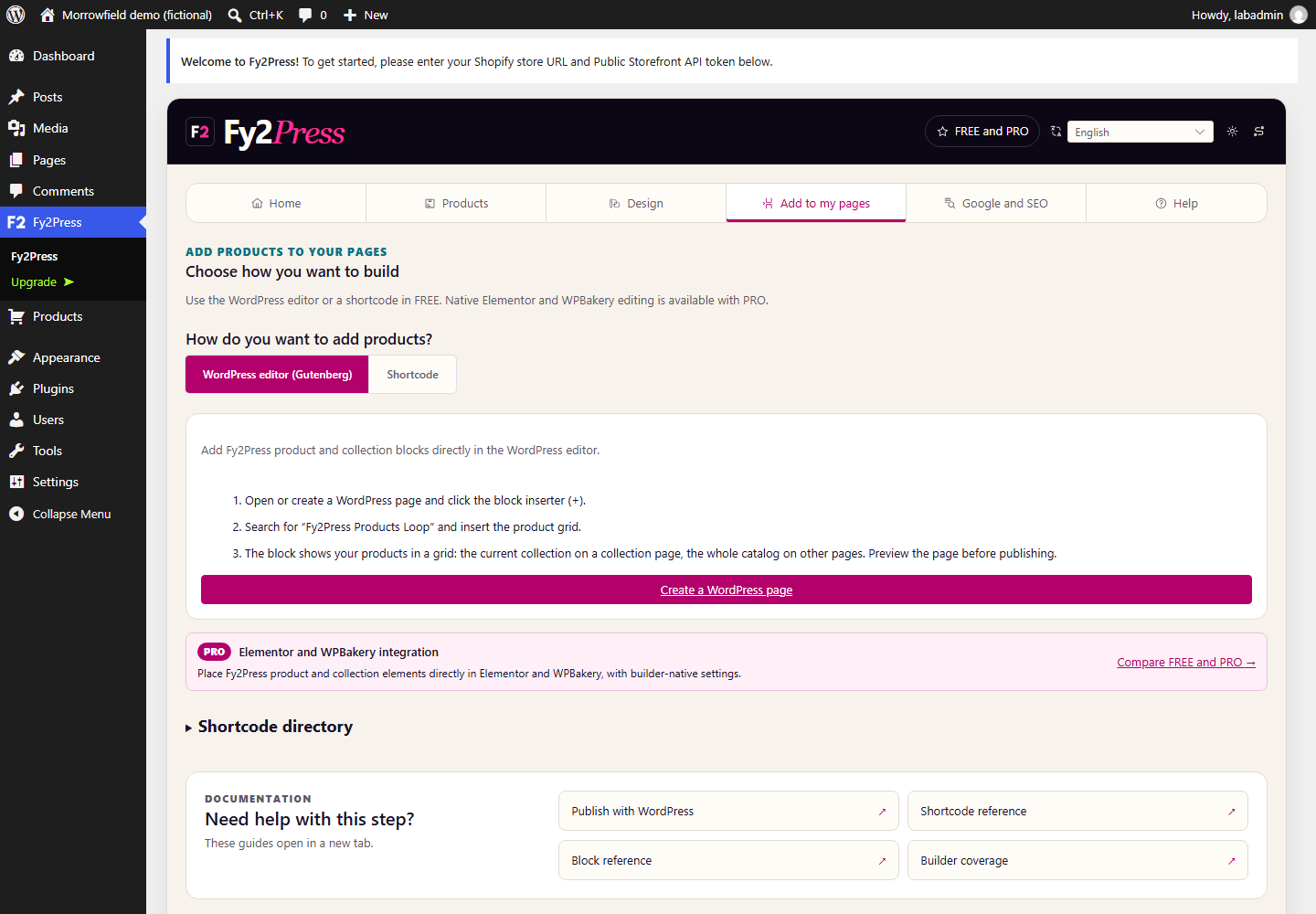
In Fy2Press 1.0.0, blocks declare no product or collection setting of their own; they follow the page context. The Add to my pages tab states that the products loop block (shopipress/products-loop) shows the current collection on a collection page and the whole catalog on other pages. For a chosen selection inside an article, add the WordPress Shortcode block and paste one of these, replacing the handle with the short name Shopify uses in the product or collection address:
- A selection for a section or the whole guide, as in the demo above:
[fy2press_products_loop collection="collection-handle"] - One product inside a section, documented in the reference but not shown in the demo:
[fy2press_product handle="product-handle"]
Element shortcodes such as fy2press_product_price or fy2press_buy_now are designed for a product context, such as a product page. Copy exact names from Add to my pages or Help: public names start with fy2press_, and the shortcode reference lists their attributes.
What should you check before you publish?
Run a synchronization, then open the public page, not only the editor preview:
- Compare each product with Shopify: title, price, currency, variants and availability. In our demo, cards show amounts with a $ sign while the product page shows C$; if your readers could confuse currencies, say which one applies.
- Count the products. In the demo, a
limit="3"attribute did not cap the guide at three: the rendered page shows all four products of the collection. To control what appears, control the content of the collection. - Look for empty spots or placeholder values, a sign that a component lacks its product context.
- Read the page on a phone, without horizontal scrolling.
- Follow the buying action to the right Shopify store without completing an unauthorized test payment.
- Label fictional or test data as such, and state who selected the products and how, as Google’s guidance on helpful, people-first content encourages.
This method shortens the reader’s path from a recommendation to a product. It does not, by itself, promise more sales or better rankings.
Which template can you copy for your next guide?
Copy this outline into your planning document. The example row uses the fictional Morrowfield catalog.
1. Decision
- Reader: …
- Decision at the end of the guide: …
- Criteria that change the answer (two to four): …
- Needs and products this guide does not cover: …
- Who selects the products, and how (stated on the page): …
2. Selection
| Need or reader | Deciding criterion | Product (handle) | Why, and when to choose otherwise |
|---|---|---|---|
| Carry a work week in one bag | Room for a laptop, clothes and lunch | Transit 24 backpack (transit-24-backpack) | 24-liter commuter bag; not needed when the reader only carries small items |
| To fill in | To fill in | To fill in | To fill in |
| To fill in | To fill in | To fill in | To fill in |
3. Component placement
- Shopify collection for this guide (handle): …
- Collection and products available to the Headless sales channel: yes or no
- Shortcode for each section: …
- Prices or stock levels typed in the text: none
4. Review before publishing
- Synchronization run on (date): …
- Prices, currency, variants and availability compared with Shopify: …
- Mobile reading checked between 320 and 414 pixels wide: …
- Buying action leads to the right Shopify store: …
- Image rights confirmed, demo or test data labeled: …
5. Maintenance
- Owner: …
- Update triggers: product added to or removed from the collection; change of price, availability, variant or image; advice no longer accurate
- Last real check, entered by hand and never taken from a build date: …
What comes after publication?
Treat the guide as a page with a maintenance routine. Each time the collection or its products change in Shopify, run a synchronization, reopen the public guide and repeat the review list. PRO adds an option to schedule synchronization with an active licence; scheduled runs are not instant and depend on WP-Cron.
The Morrowfield case study shows the same fictional catalog in a collection page, a product page and this guide. To build your own guide, try the free plugin from WordPress.org, then follow Publish with blocks and shortcodes.
Sources
Next step
Install the free plugin with the installation guide, or compare what FREE and PRO include.