Case study
Morrowfield case study: from catalog to editorial experience
See how one fictional catalog feeds a catalog page, a product page and a buying guide, then reuse the sheet to document your own build.
Before you start An existing Shopify store, a WordPress site and the FREE plugin; a staging copy is recommended
Screens come from the real Fy2Press FREE 1.0.0 plugin running on fictional Morrowfield demo data. No Shopify store or payment is shown.
You have a Shopify catalog and a WordPress site, and you want more than a grid of products. A collection, a product page and a buying guide can use the same products without repeating the same content. The Morrowfield example gives each page a different job: the catalog helps visitors explore, the product page helps them check one item, and the guide helps them decide.
Morrowfield is a fictional brand. Its products, prices and copy were invented for this demonstration, and nothing here is a customer result. The pages you see, however, were really rendered by the free Fy2Press plugin, version 1.0.0, in a local WordPress lab. No Shopify store was connected and no payment is shown. This page is published by Pagup, the publisher of Fy2Press.
Below: the annotated demo, what it does not prove, and a sheet to reproduce it on your own site.
What was the demonstration meant to show?
One question: can a single small catalog feed three WordPress pages that each answer a different visitor question, with the FREE edition only? The demo answers with a real render, not a mockup, on deliberately fictional data.
| Element | What the lab used |
|---|---|
| Plugin | Fy2Press FREE 1.0.0, the package published on WordPress.org |
| WordPress | WordPress 7.1, PHP 8.4, Twenty Twenty-Five theme |
| Catalog | 6 fictional products in 2 collections, Carry and Travel essentials |
| Images | Crops of 3 licensed Morrowfield photographs; no image was generated |
| Shopify | Not connected: no token, no cart, no checkout, no payment |
The six products: Transit 24 backpack (variants including Olive), Transit 24 travel kit, Commuter studio set, Field bottle (two sizes, two prices), Organizer pouch and Packable sling. The catalog stays small on purpose: the three photographs show only these items.
How was it built?
These are the steps actually run in the lab.
- Install FREE 1.0.0 from the WordPress.org package on a disposable WordPress site, reachable only from the local machine and configured to block its own outbound requests.
- Leave Shopify disconnected: the plugin screens still show the welcome notice asking for a store URL and a Public Storefront API token.
- Write the catalog with a lab script: six fictional products with variants and prices, two collections and their tags, stored directly in WordPress as Fy2Press product records. No synchronization ran. On a real site, these records come from a manual synchronization with your connected store, as described in Review and synchronize the catalog.
- Create two ordinary WordPress pages with Shortcode blocks. The catalog page holds a one-sentence introduction, then
[fy2press_product_search],[fy2press_collection_filter],[fy2press_collection_sort]and[fy2press_products_loop]. The guide holds two short sections followed by[fy2press_products_loop], limited to the Travel essentials collection. The product pages are the ones Fy2Press generates for each product. - Capture each screen with an automated browser at desktop width, in English and in French, without retouching. On the product page, the Olive variant was selected before the capture.
The script created the pages itself. They contain standard Shortcode blocks, the same ones you can add in the editor, but the editing step was not captured.
What does each page do?
The catalog page: explore
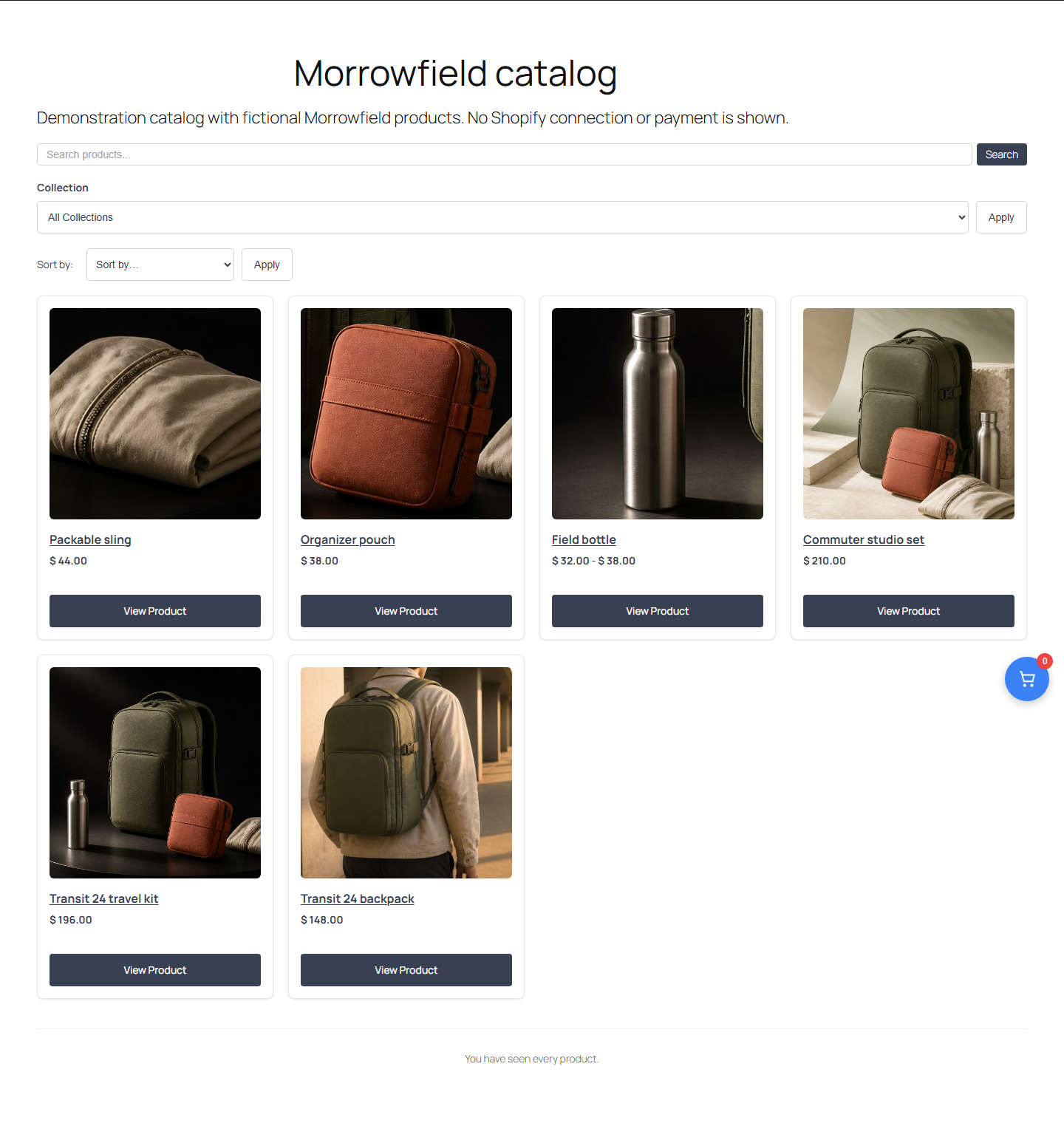
The catalog answers a broad question: what is available? The capture shows a search field, a Collection filter, a Sort by control and six cards with image, name, price and View Product button. The Field bottle card shows a price range because its two sizes have different prices. According to the shortcode reference, the search looks at product titles in version 1.0.0, so clear product names matter.
The controls are visible, but no filtered or sorted result was captured.
What to keep: one plain sentence above the grid says what the page is for; the cards need no marketing paragraphs.
The product page: check one item
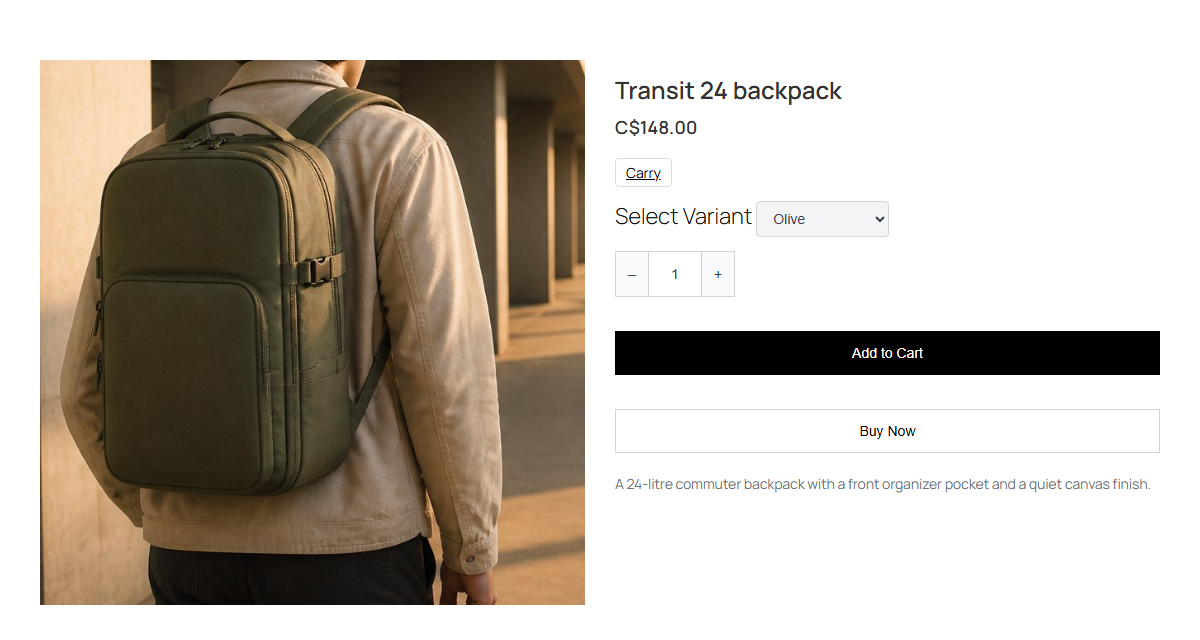
The product page answers a narrower question: is this the right item? It shows the image, title, price, collection (Carry), a Select Variant list set to Olive, a quantity field, Add to Cart and Buy Now buttons, and the description.
Nobody clicked the buying buttons: with no store connected, there is no cart or checkout to show. On a connected site, the buying action leads to Shopify, where payment happens, as explained in Publish with blocks and shortcodes.
What to keep: leave comparisons out of the product page, whose job is to confirm details and variants.
The buying guide: decide
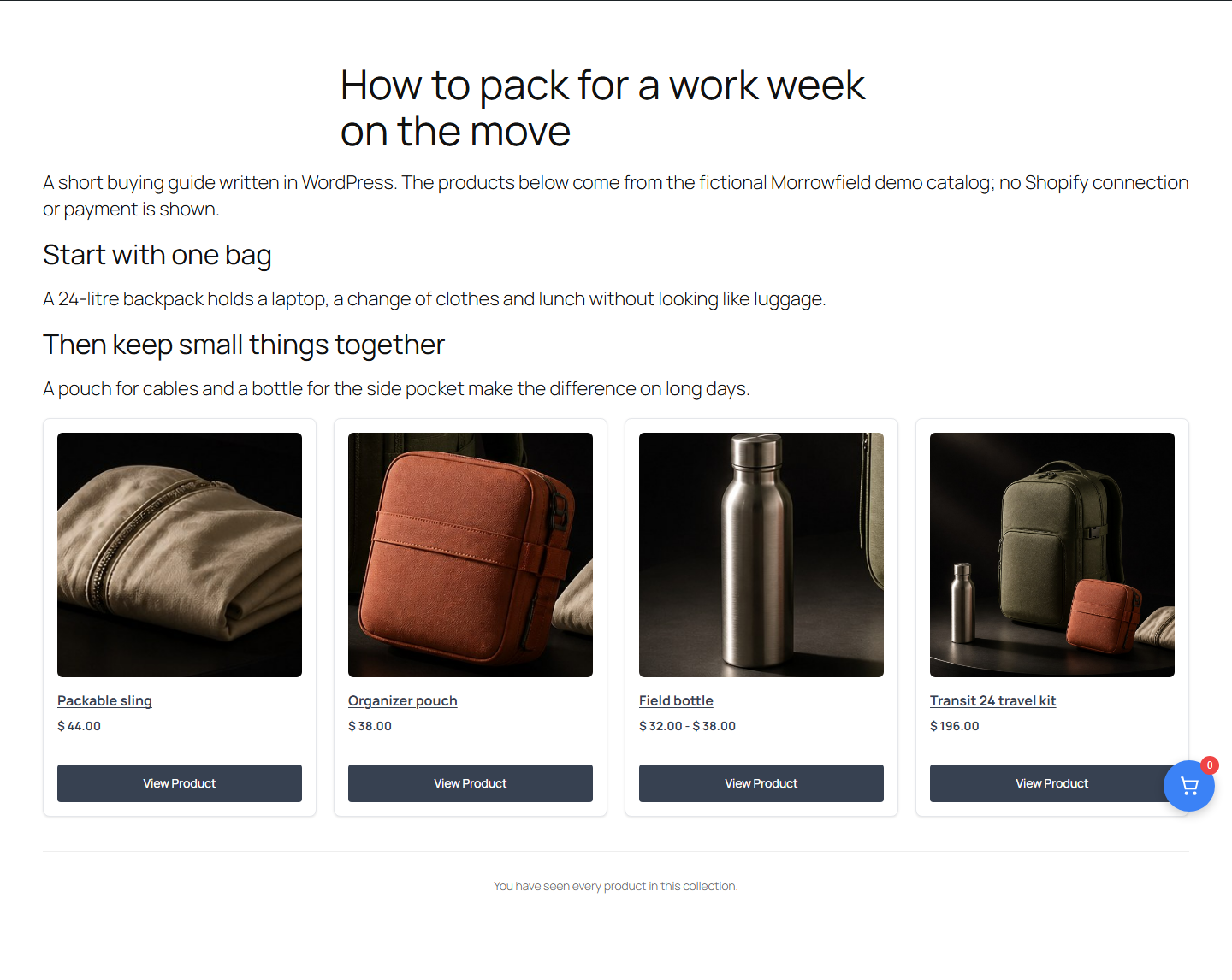
The guide answers the question the other two pages leave open: how do I choose? Its text, written in WordPress, gives two steps (start with one bag, then keep small things together) and ends with a product grid.
It also shows the limit of a short demo. The first step recommends a backpack, but the grid shows the Travel essentials collection, where the backpack only appears inside the travel kit. On a real site, place each product right after the recommendation it supports, with a direct link or the [fy2press_product] shortcode, which the shortcode reference documents with a product handle. That shortcode was not tested in this demo. For a complete method, see the WordPress buying guide resource.
Behind the pages: the settings screens
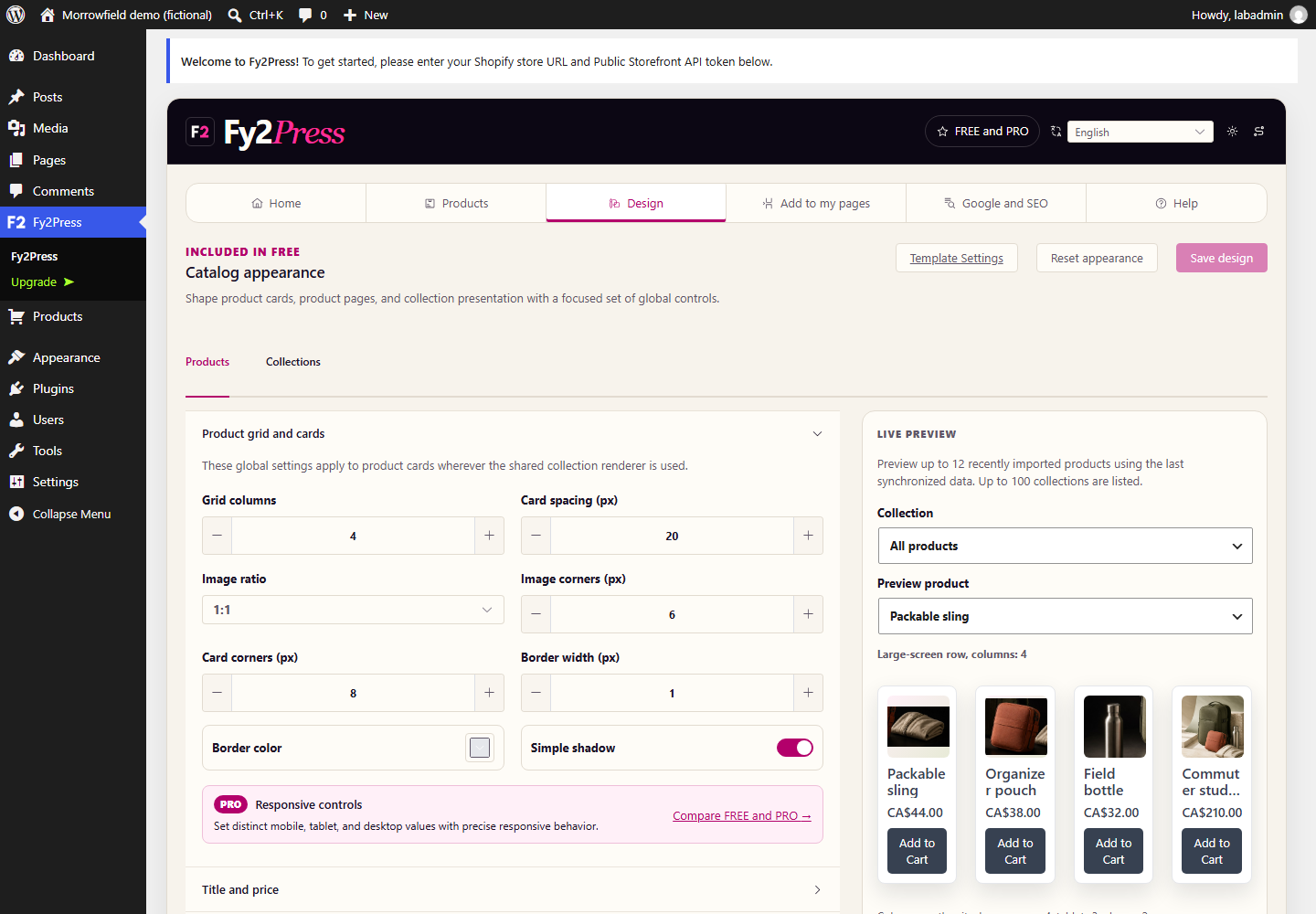
The Design tab holds global card settings (grid columns, image ratio, corners, borders, shadow) with a live preview. Responsive controls are marked PRO and were not used.
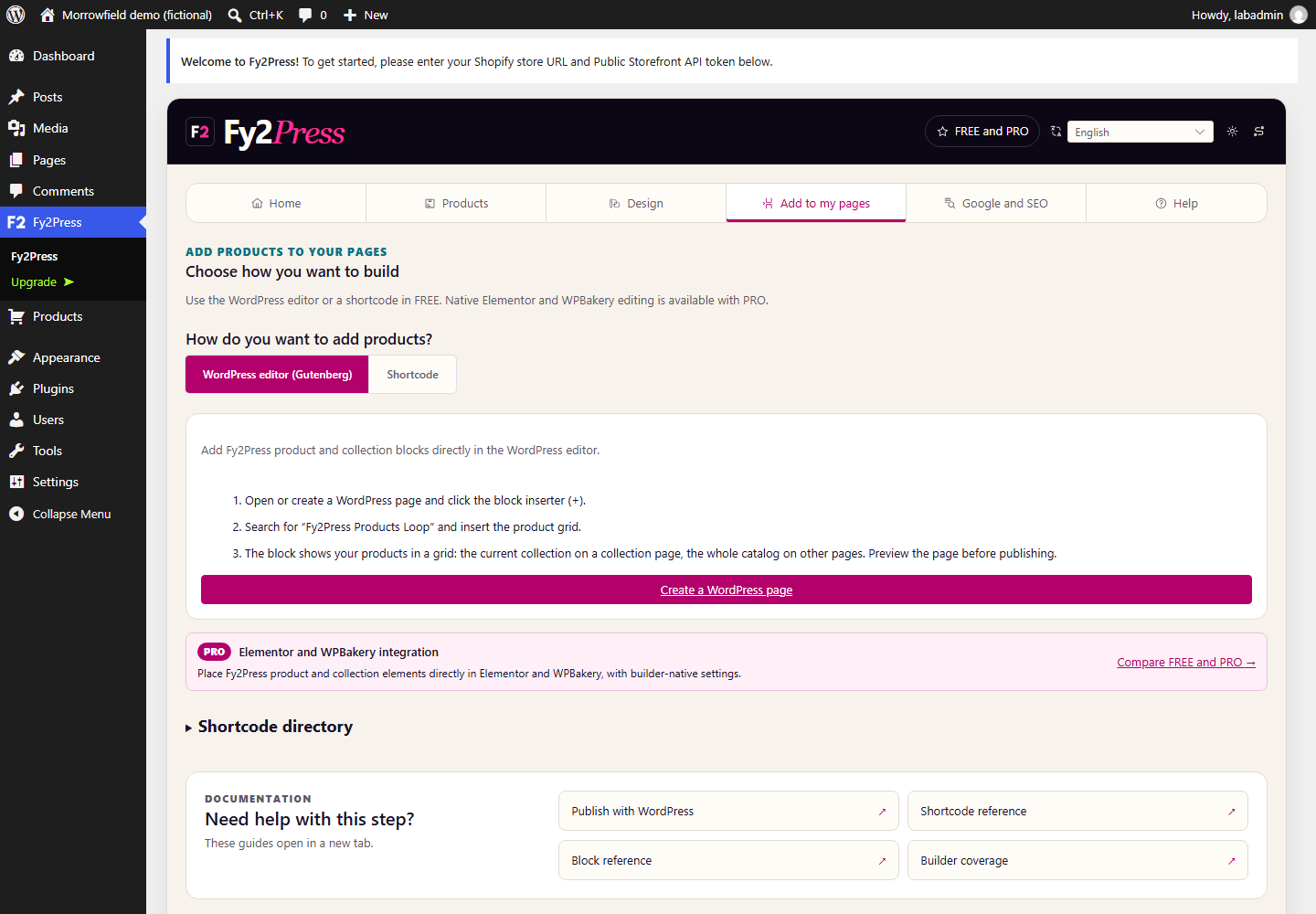
The Add to my pages tab offers the WordPress editor (Gutenberg) or shortcodes. The demo used shortcodes.
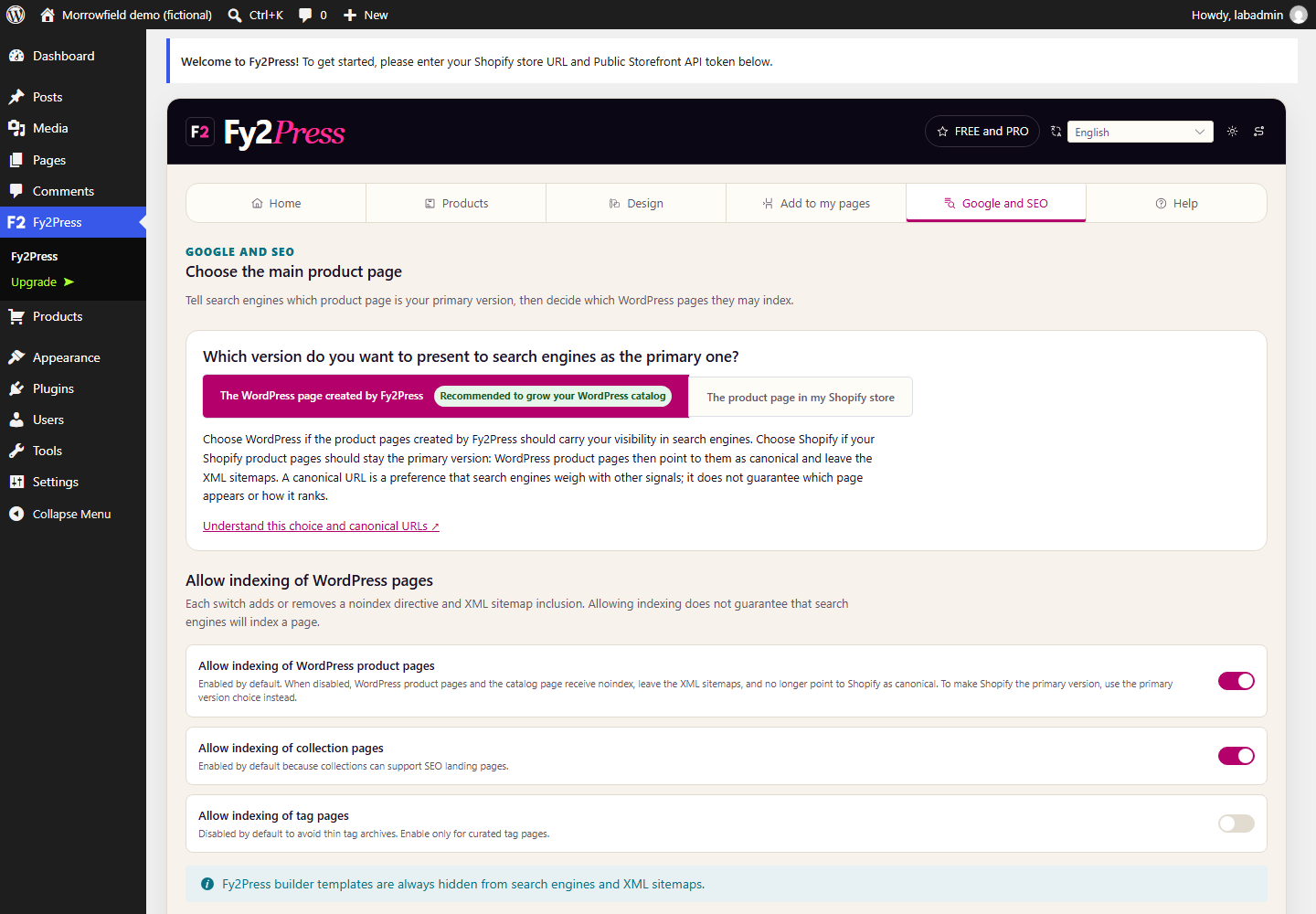
The Google and SEO tab asks which page is a product’s main version (the WordPress page or the Shopify product page) and which WordPress pages may be indexed. The demo did not inspect what search engines receive; Choose the canonical catalog surface explains how to check it on a public page.
What does this demonstration not prove?
- A real Shopify connection. No store, no token and no synchronization. A real site needs an existing Shopify store and its subscription, and in FREE you start each synchronization manually; it is not instant.
- Payment. No cart, checkout or order was created. Payment always happens on Shopify.
- Performance. No speed or load measurement was made.
- Every theme. One theme, Twenty Twenty-Five, at desktop width. Other themes, page builders and phone layouts are not shown here.
- Traffic, rankings or sales. The lab was reachable only from the local machine and had no visitors. No such result exists, so none is claimed.
- PRO features. Only the FREE edition was used.
How can you reproduce it on your own site?
This sheet follows the method above. Copy its structure; it needs no private data.
1. State the nature of the case
Fictional demo or authorized customer case? Note the plugin edition and version, the WordPress version, the theme and the goal. If the data is fictional, say so on the page itself.
2. Prepare the catalog
You need an existing Shopify store, a WordPress site and the FREE plugin, ideally on a staging copy. Connect the store, choose the main product page in the Google and SEO tab, then run the manual synchronization. New product pages are published directly, so decide their visibility first.
3. Give each page one job
- Catalog: explore, with search, filter, sort and a grid.
- Product page: check, with variants, price, image and description.
- Guide: decide, with criteria first, then the products that answer each criterion.
Link the pages by the reader’s next question: from a guide recommendation to its product, and from a product to the guide when the choice needs context.
4. Check before you publish
Open the public pages on a computer and on a phone, not only the editor. Compare a product with Shopify (price, variants, availability). Follow the buying action to Shopify without completing an unauthorized payment.
5. Match each claim with its evidence
| Claim you want to make | Evidence it needs | Morrowfield demo | Your project |
|---|---|---|---|
| The catalog displays and can be explored | Capture of the real render | Shown; filtered result not captured | To fill in |
| The product page offers variants | Test on a named product | Shown, Olive selected | To fill in |
| Products appear inside a guide | Editor and public render | Render shown; editor not captured | To fill in |
| Synchronization works | Authorized store and results | Not run | To fill in |
| Checkout was reached | Authorized buying journey | Not run | To fill in |
| Sales went up | Suitable measure over a period | Not run, no claim | To fill in |
Do not fill the last three rows by deduction from the first three. If no commercial measure exists, remove the promise instead of replacing it with a plausible number.
6. Clear the rights
For a real customer case, get written permission for the images, quotes, name and publication. Remove orders, customer data, tokens, licence keys and private addresses from every screenshot.
Where to go next?
- Who does what between Shopify and WordPress: overview.
- Build the pages: Publish with blocks and shortcodes and Shape products and collections.
- What stays with Shopify: Understand data, credentials and external services.
To try the same pages with your own catalog, install the free plugin from WordPress.org. PRO is sold separately through Freemius, our licensing and payment provider.
Sources
Next step
Install the free plugin with the installation guide, or compare what FREE and PRO include.